Christmas Pet Photo AI Video From a Portrait
Turn one clear photo of your cat or dog into a Christmas video. The sample shows a pet peeking through red wrapping paper beside a tree. Choose a photo with the eyes, ears and coat markings visible. Watch the demo without signing in. Generation requires an account and credits.

Example photo
Use a clear photo of one cat or dog, facing forward or slightly sideways, with visible eyes, ears and coat markings.
Your photo stays in this browser. Watch the demo without signing in. Sign in to create your own video.
How the template works
- Choose a photo and preview it on your device.
- Choose a style from the template directory.
- Submit on an available template and check the finished clip in My Videos.
100 credits
Start with a clear face and a recognizable expression
The Christmas pet photo template shows a cat or dog peeking through wrapping paper near a tree. Pick a familiar expression and look for the markings that make your pet easy to recognize. A bright patch over one eye, a dark nose or a distinct ear shape can help the viewer identify the animal as soon as it appears. Use a photo of one pet looking toward the camera or slightly to one side. Do not use a shot where a toy, a hand or another pet covers the eyes.
Lower the camera to pet height and use soft light. A dark coat is easier to see against a lighter background, while a light coat benefits from shade that keeps fur detail visible. Leave space around each ear and below the muzzle. You can take an ordinary photo on a plain blanket or near a wall. There is no need to pose your pet with wrapping paper. The template adds the holiday scene. Take the photo while the animal is comfortable enough to hold still so those small facial details stay sharp.
Make the wrapping-paper reveal readable
Check that the eyes and ear shapes remain clear when the paper opens. If the paper seems to crowd the face, try a photo with more room around the head. If the coat changes too much, use a photo with better lighting and less background clutter. The framing should make the opening look like it belongs around the expression. Do not zoom in so far that the viewer can only see a nose and one eye. A little space around the shoulders makes it easier to read the peek as movement.
If you have multiple pets, take individual photos and make separate animations. The variations in expressions make each clip worth seeing, and the paper opening can be framed around one animal at a time. A short greeting for your family can put the pet's name in the message outside the clip. For a public reel, place text where the app controls and paper opening will stay clear. The pet greeting can follow a Christmas lights video when you want two different short scenes rather than one longer animation.
Preview on the screen where people will watch
Select the photo in the creation panel and examine the preview at roughly the size of a phone screen. Look away, then look back. The main subject should be the first thing you notice. Use the preview to check the source composition, the amount of space around the subject, and whether the image is sideways. Selecting a file for preview keeps it in your browser. Once you are happy with the photo, sign in to generate the clip and see the point cost of the selected duration before submitting.
When framing a shot for a phone, leave room for the viewer interface. Controls, captions, and a channel name can cover the top or bottom of a short video. A source image that is already cropped tightly gives you fewer choices later. Protect the important part of the frame by keeping it in the middle. If you use a crop, compare the preview with the uncropped photo. Choose the version where the action can take place without leaving the screen and where the main subject remains easy to recognize.
Choose a length based on the action
Start with a short clip when there is only one moment the viewer needs to see. A longer clip gives a viewer more time to recognize the scene, watch the movement and see the finished effect. Check the duration and its cost in the creation panel. Think about how the video will be seen. A short attachment in a family chat is watched differently from a post where the first image needs to explain the setting to someone who has never seen the original photo.
Play back the entire file when it is ready. Check the opening frame, the moment when the main action happens, and the last frame. If the opening does not make the subject clear, a sharper or better framed source will help. If the action is hard to spot, look for something in the source that might be competing for attention. Save the result you want to keep directly from My Videos so you can compare it with any later version without relying on a screen recording.
Prepare the finished MP4 for sharing
Download the finished MP4 and attach that file to a family or group message. Include a short note if the viewer needs context, then let the animation provide the surprise. For a public short, leave room for captions and preview the upload. Watch it with the sound off once to see whether the main movement is understandable on its own. If a caption covers the point where the subject changes, move the caption before publishing. The clip should be readable to someone who did not see the demo.
Use photos you have permission to share. Before posting publicly, check for house numbers, vehicle plates, school names or personal photographs in the source background. Label the generated clip as AI when posting it publicly. If you share several videos together, give each shot a clear purpose and its own starting image. A holiday message can use one recognizable subject per clip, which makes it easier for viewers to follow the effects. Treat the demo as a guide to framing and timing when choosing what to upload.
More video templates

Hotel Lobby Duet
Two men trade verses beneath a suspended silver microphone.
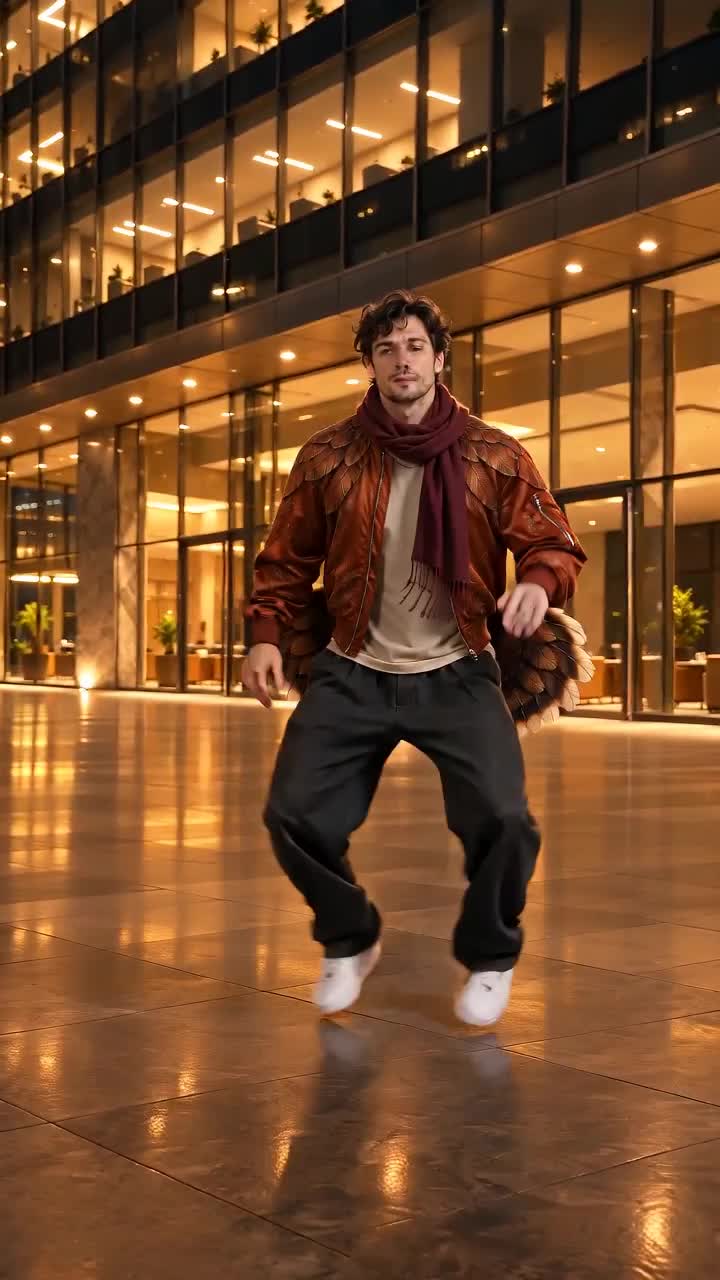
Turkey Dance
A turkey steps side to side and fans its tail.
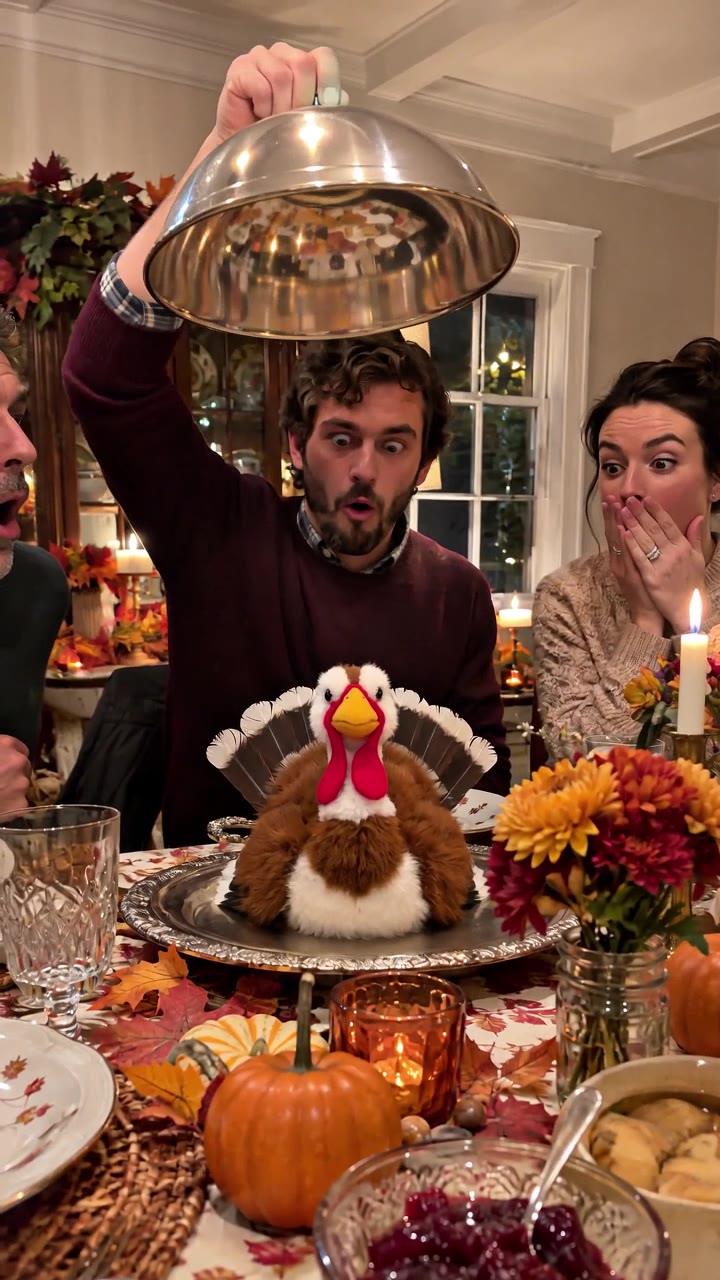
Funny Thanksgiving
Lift the lid for a Thanksgiving dinner surprise.
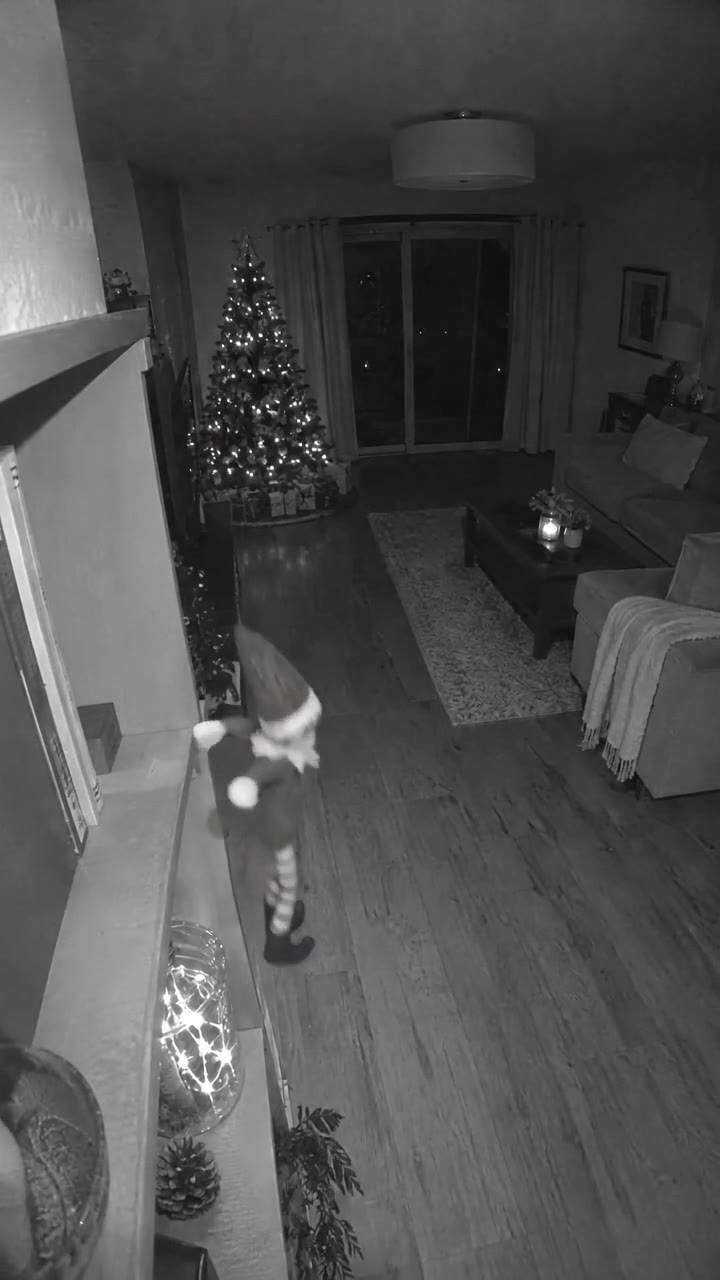
Elf on the Shelf
A Christmas elf gets caught moving at night.

Christmas Lights Car
Watch festive bulbs trace the outline of a parked car.
Frequently asked questions
- What moves in the Christmas pet photo effect?
- The concept uses small portrait movements, such as a blink or gentle tilt. The framing stays close to the pet’s face.
- What kind of pet photo should I try?
- Pick a sharp, eye-level photo with one pet facing the camera and some space above its ears.
- Can I try my photo without signing up?
- Yes. Use the photo picker to see a local preview without creating an account.
- Is my preview uploaded?
- The preview stays in the current browser tab. Selecting the file does not upload it.
- Is this demo a customer result?
- This is a Pixmako AI demo with sound.
- How long will the generated clip be?
- Planned output options are 5, 10 and 15 seconds at up to 720p.
- How many credits will this template use?
- A 5-second video costs 100 credits, a 10-second video costs 200, and a 15-second video costs 300.
- Can I buy credits or generate now?
- You can preview photos without signing in. The creation panel shows whether generation is available.
- Can I use a normal pet photo without Christmas decorations?
- Yes. Use an ordinary portrait with the eyes and face in focus. The template supplies the wrapping paper and tree.
- Should I use one pet or a group photo?
- Use one pet. Frame the head with space around the ears and keep the nose and eyes clear of toys, hands, or other animals.